Creating and styling video reel carousels and grids takes time. If you build a widget on one WordPress site, setting it up again on another site can take even more time and lead to mistakes.
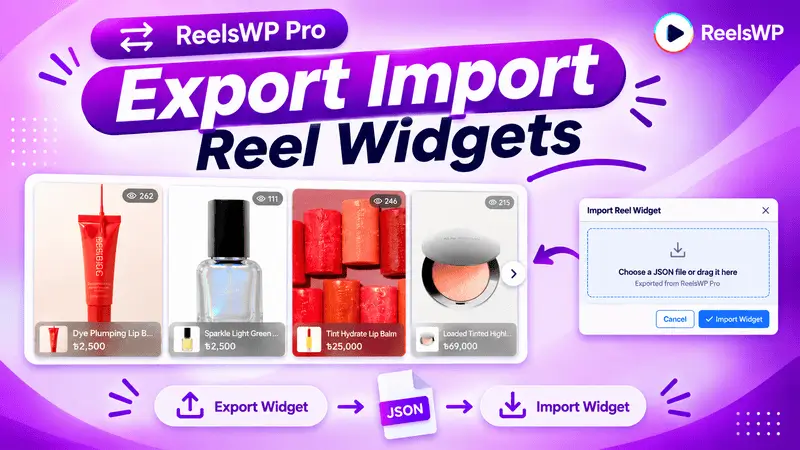
With the Import and Export Widget feature in ReelsWP Pro, you can export a widget’s settings to a file and import them into another WordPress site in seconds. The built-in Domain Migration Tool also updates media URLs when moving widgets between different domains, so your video feeds keep working after migration.
Follow the steps below to export and import video reel widgets between WordPress sites using ReelsWP Pro.
Install and Activate ReelsWP
- You need both the ReelsWP and ReelsWP Pro plugins installed and activated on both websites.
- Make sure both sites are running the same version of ReelsWP Pro (e.g., v2.1.98) to ensure smooth database compatibility.
- If you are new to the plugin, follow our dedicated installation guide to get set up.
Export a Reel Widget
Exporting a widget saves all its visual styles, animations, layouts, custom CSS, story sequences, video links, and thumbnails into a single file.
Step 1: Open Reel Groups in your WordPress dashboard
- Log in to your WordPress admin dashboard.
- In the left menu, click ReelsWP.
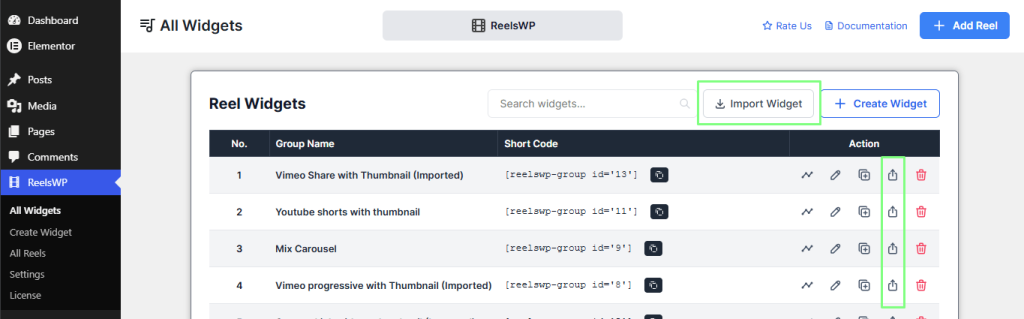
- Select Reel Groups to view all your created widgets.
- Find the widget you want to transfer in the table list.
Step 2: Click the Export button
- In the Actions column on the right side of your widget row, locate the Export icon.
- Click the Export button.
- Your browser will immediately download a
.jsonfile containing your complete widget configuration.
Import a Reel Widget
Once you have exported your widget file, you can import it onto your live website or another store.
Step 1: Open the Import Widget modal
- Log in to your destination WordPress website.
- Go to ReelsWP > Reel Groups.
- In the top header area next to the search bar, click the Import Widget button.
Step 2: Upload your widget JSON file
- In the import popup window, drag and drop your downloaded
.jsonfile into the upload zone, or click to browse and select it. - ReelsWP Pro will instantly verify the file format and plugin version.
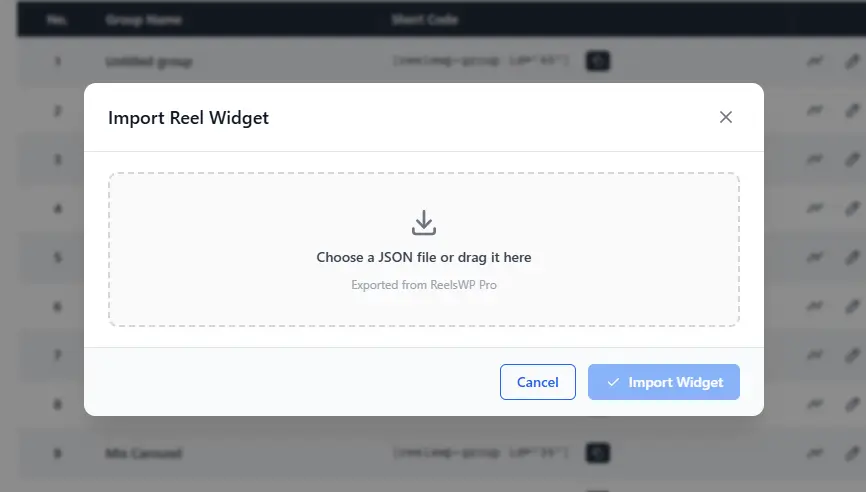
Step 3: Update media URLs with the Smart Domain Replacer (Staging to Live)
If you created your widget on a local site or staging domain, the video files and thumbnails may still point to the old URL. ReelsWP Pro solves this automatically with its built-in domain migration tool:
- The modal automatically detects the old domain from your media links (e.g.,
https://staging.yourstore.com) under Detected Domain. - Your active website domain is prefilled under Target Domain.
- Click the Replace All Domains button to batch-update all video and thumbnail URLs in one click.
- You can also manually review individual reels in the list below and adjust any video or thumbnail URL if needed.
- Click Import Widget at the bottom of the modal.
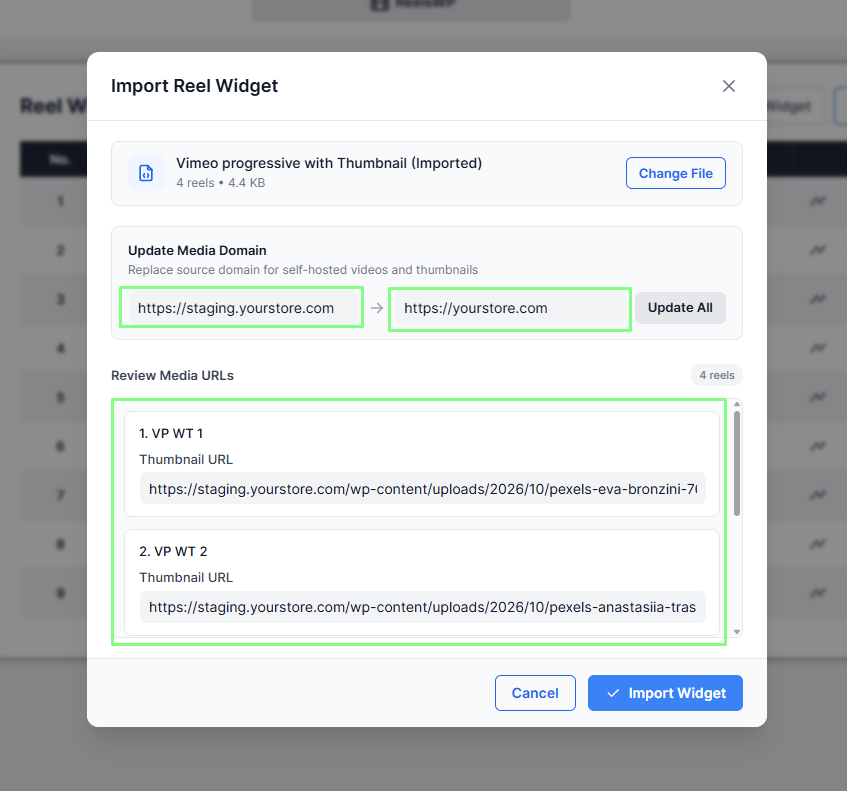
Once imported, your new widget will appear in your Reel Groups table tagged with (Imported). All view counters are reset to 0 so you start with fresh analytics.
FAQs
1. What should I do if I get a “Version mismatch” error when importing?
ReelsWP Pro checks plugin versions to prevent database conflicts. If you see this message, update ReelsWP Pro to the latest version on both the exporting site and the destination site, then re-export and import the file.
2. Does importing a widget upload physical video files into my Media Library?
The import process references the video URLs stored in the JSON. If your media files are hosted on the same server, an external host, or a CDN, they will stream without issues. If you are moving away from a temporary local server, make sure to upload those video files to your live media library and use the Domain Replacer in the import modal to match the new URLs.
3. Will my analytics and view counts carry over to the new site?
No. All view counts and interaction counters are automatically reset to 0 upon import so your new site starts with fresh, accurate analytics.
4. Can I import a widget on the same website to create a duplicate?
Yes. You can export a widget and import it back into the same website. The plugin will create a separate group named [Original Name] (Imported) with new unique IDs, allowing you to quickly reuse styles for different product pages.
5. What happens if my exported widget contains custom CSS?
All custom CSS and styling rules configured in the Pro settings are preserved and imported cleanly with your widget so your design looks identical on the destination site.