Want to open your video reels from a custom button, navigation menu item, text link, banner, or any other element on your website? ReelsWP Pro now includes an External Trigger feature that lets you launch a reels preview from virtually anywhere on the page without relying on the default thumbnail.
This gives you complete control over the user experience, allowing you to integrate reels seamlessly into your site’s design. Whether you’re adding a “Watch Videos” button to your header, triggering reels from a product page CTA, or opening a specific reel group from a custom navigation link, the setup is simple and flexible.
In this step-by-step guide, you’ll learn how to:
- Identify your specific widget ID
- Open reels previews from buttons, links, divs, and other custom element
- Test and deploy your external trigger buttons
Why Use External Triggers?
- Seamless Custom Branding: Blend your video triggers seamlessly into your existing site design by styling your own buttons or using your theme’s native layout tools.
- Higher Conversion Rates: Place high-intent “See it in Action” or “Watch Demo” buttons directly next to product descriptions or inside your hero sections where users are most likely to convert.
- Minimalist UI/UX: Keep your ecommerce stores or landing pages clean, uncluttered, and fast, loading the interactive video pop-up experience only when a user intentionally requests it.
Requirements
- ReelsWP Pro plugin installed and activated.
- A ReelsWP widget group already created with uploaded videos.
- Crucial Condition: The ReelsWP widget must be used somewhere on that exact same page where you want to use the external click. If the widget layout is missing from the page, your custom button won’t have any video assets to fetch, and the player will not open.
💡 Design Tip for a Hidden Setup: If you want a completely clean layout without displaying the standard thumbnail grid or carousel, don’t worry! You can embed the widget on the page and completely hide it from view using your page builder’s built-in visibility feature (found under the Advanced tab of your section or container to hide it on desktop, tablet, and mobile) or by simply applying a quick line of custom CSS like display: none; to the container. The plugin will still safely detect the widget in the background and launch the full-screen player perfectly when your custom button is clicked.
Step 1: Identify Your Widget ID
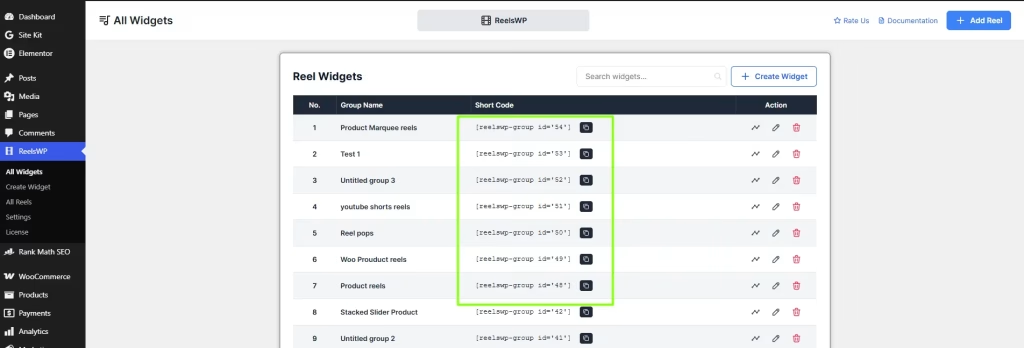
Every ReelsWP widget group on your site has its own unique ID number. The plugin uses this ID to map your external button to the correct video collection using a specific format: #reelswp-group-{YOUR_ID}
For example, if your widget’s ID is 27, the final target selector you will need is: #reelswp-group-27
How to find your ID:
- Navigate to the ReelsWP dashboard in your WordPress admin menu.
- Look at your list of widgets, or check the shortcode you used to embed it (e.g., [
reelswp-group id="27"]). The number inside the quotes is your ID.
Step 2: Create Your Trigger Element and Add Data Attributes
You can turn virtually any HTML element such as a custom theme button, a <div> container, or a standard text link (<a> tag) into a working trigger. You just need to add two specific data attributes to that element:
data-reelswp-toggle="reelswp": This tells the ReelsWP core script to listen for clicks on this element.data-reelswp-target="#reelswp-group-27": This tells the plugin exactly which widget group player to launch (make sure to replace27with your actual widget ID).
Example: Using Page Builder Custom Attributes (Elementor, Bricks, etc.)
If you are using a standard Button widget or Heading widget inside a page builder, you don’t need to write raw HTML. Instead, select your button widget, navigate to Advanced → Attributes, and add the attributes using the pipe (|) format:
data-reelswp-toggle|reelswp
data-reelswp-target|#reelswp-group-27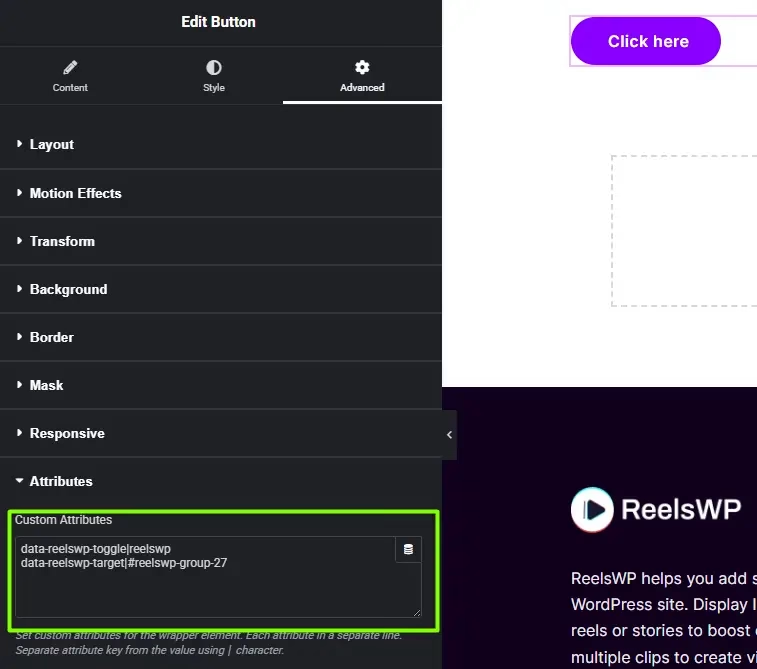
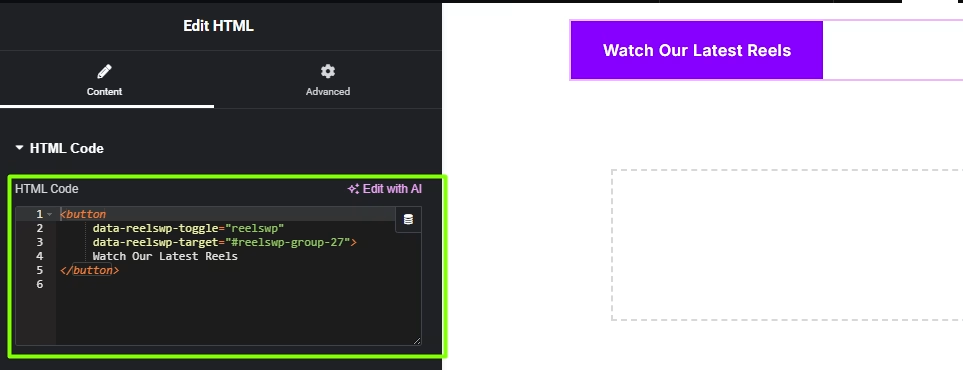
Example: Using a Custom Button Element
<button
     data-reelswp-toggle="reelswp"
     data-reelswp-target="#reelswp-group-27">
     Watch Our Latest Reels
</button>
Step 3: Test and Go!
Once your element has the correct data attributes and your widget group is present on the page, you are ready to test.
- Save your page changes and view the live frontend of your website.
- Click your newly created custom button or link.
- The full-screen, immersive ReelsWP video player will instantly launch over your page.
Because this feature is built directly into the core engine of the Pro version, you don’t need to configure any extra settings or toggles inside the admin panel.