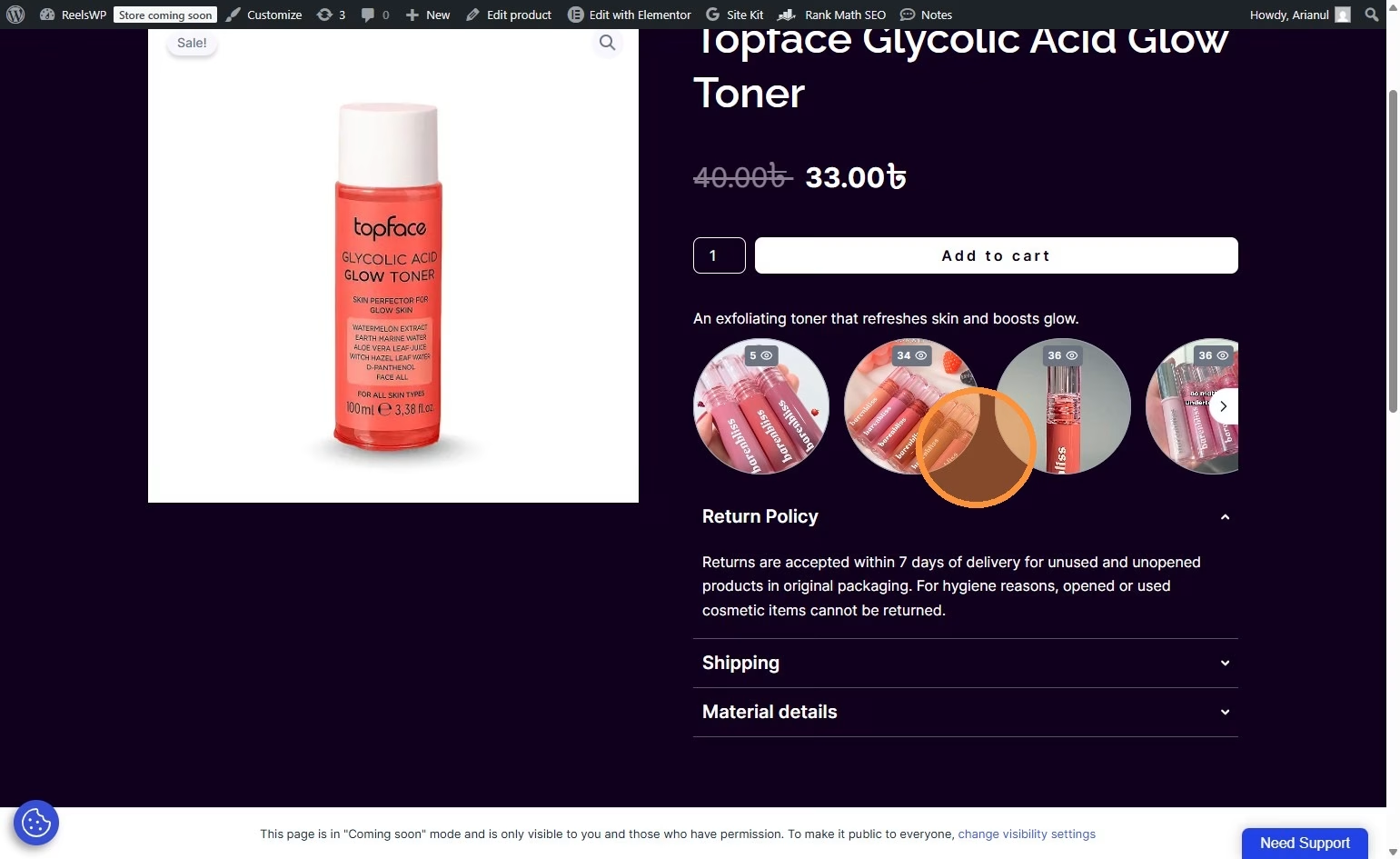
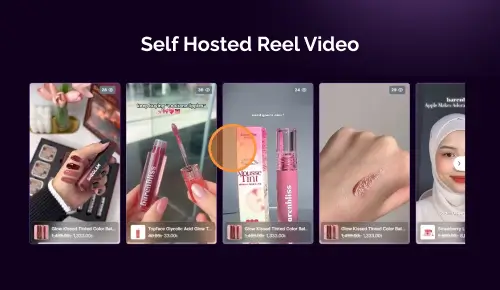
This guide will walk you through the process of creating a video reels display in your WordPress blog posts using ReelsWP. You will learn how to add, configure, and customize video reels for an engaging experience for your blog visitors.
Step 1: Install and Activate ReelsWP
- You need the ReelsWP plugin installed and activated on your website.
- You can find detailed installation instructions in our dedicated installation blog post.
- Install the plugin and click Activate once the installation is complete.
Step 2: Open ReelsWP Plugin
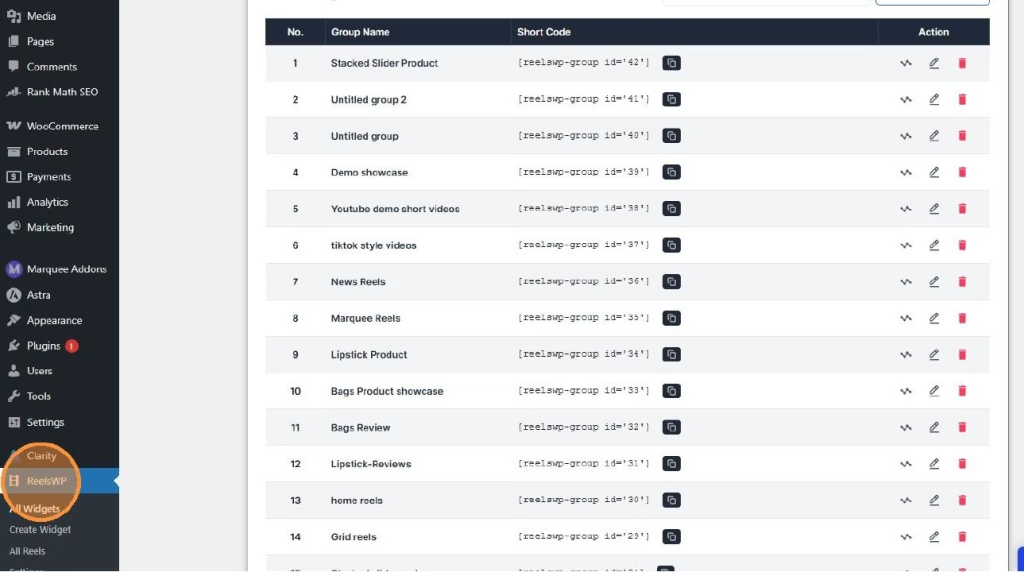
- In the left sidebar, find ReelsWP.
- Click ReelsWP to open the plugin settings and features.
Step 3: Create a New Widget
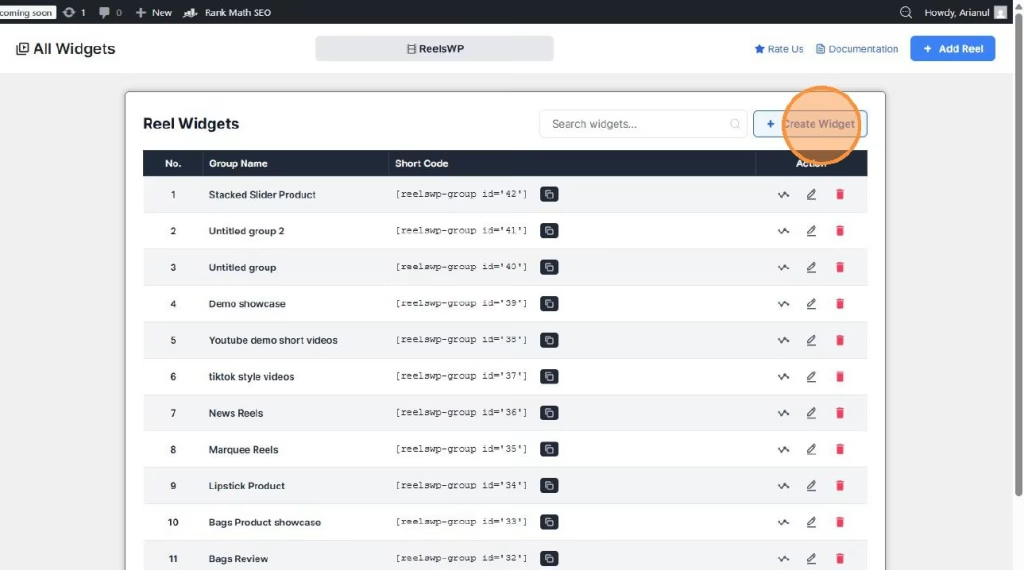
- On the ReelsWP dashboard, click Create Widget.
- This will take you to the widget management page where you can create and configure your first widget.
Step 4: Add Reels to Your Widget
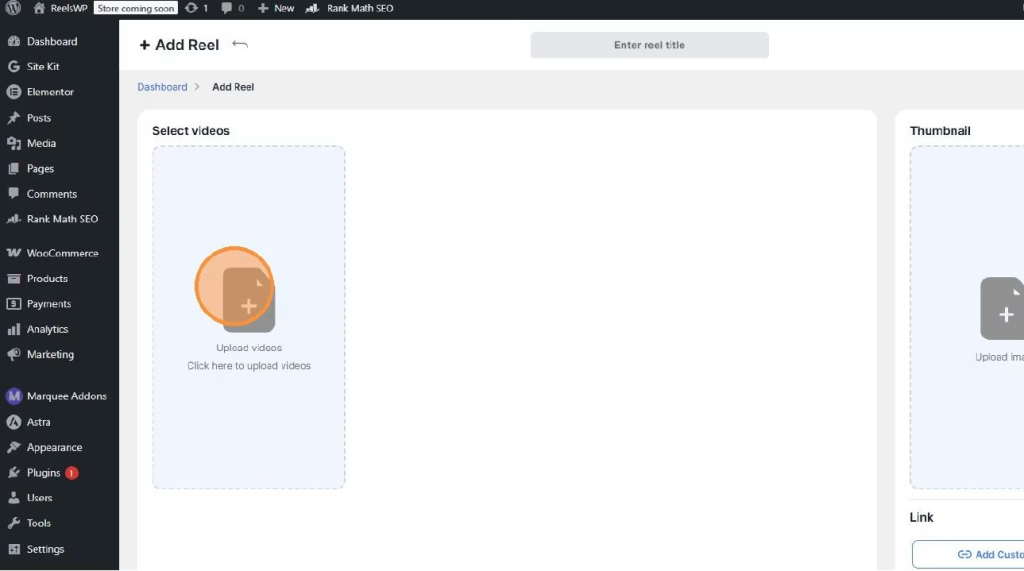
- Click Add Reel to begin adding videos to your widget.
- You’ll be prompted to upload the video files you want to use for your reels.
- Upload the videos and add titles or descriptions as needed.
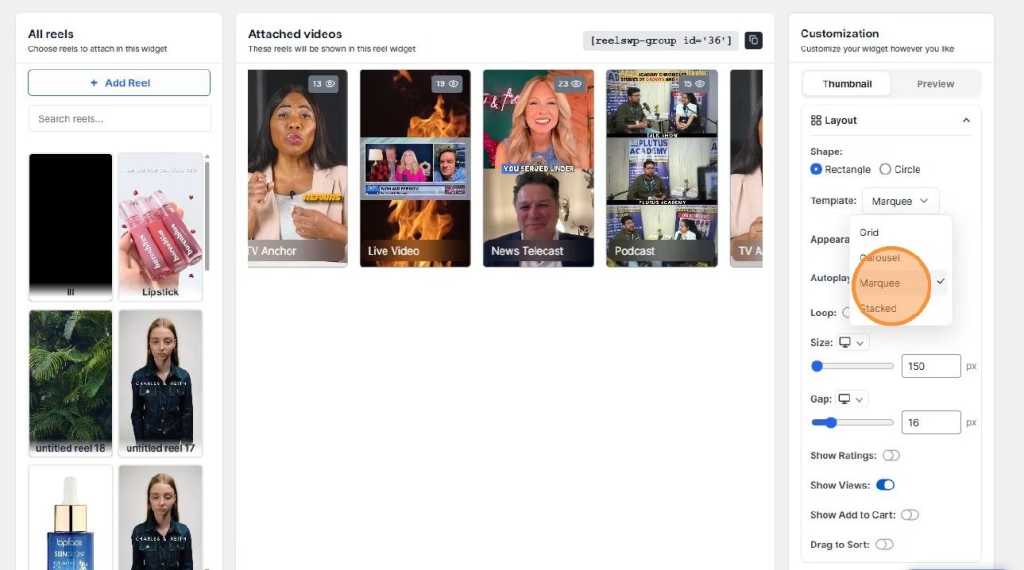
Step 5: Configure the Widget Layout
- In the Customization section, select Marquee or Grid layout based on your preferred display style.
- Customize the widget with the following settings:
- Shape: Choose Rectangle or Circle for the video thumbnail shape.
- Autoplay: Enable autoplay to start videos automatically.
- Size: Adjust the size of the video thumbnails.
- Gap: Control the gap between the videos in the widget.
- Loop: Enable loop if you want the video to restart after it finishes.
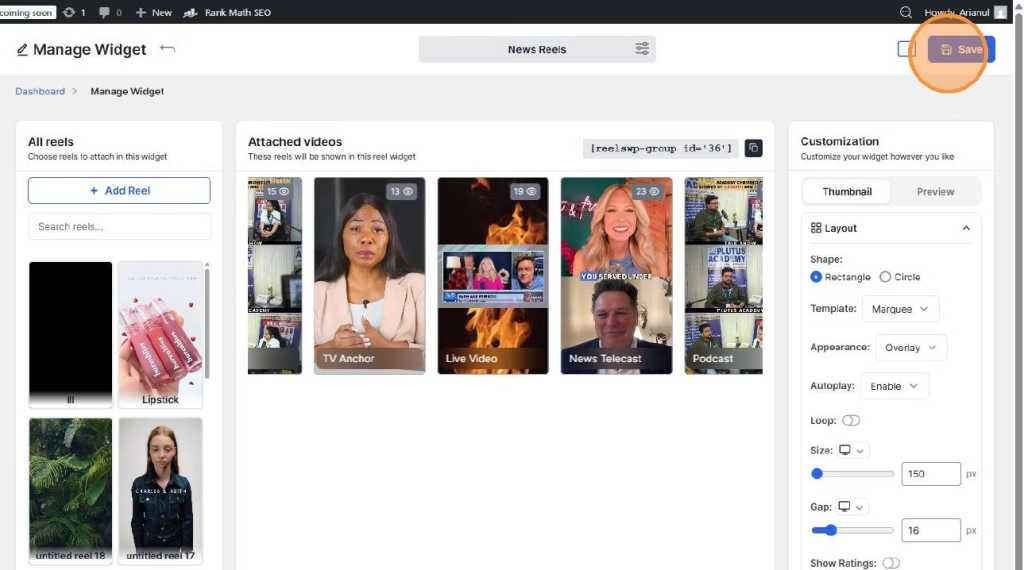
Step 6: Save the Widget
- Once you’ve finished customizing, click Save to store your widget settings.
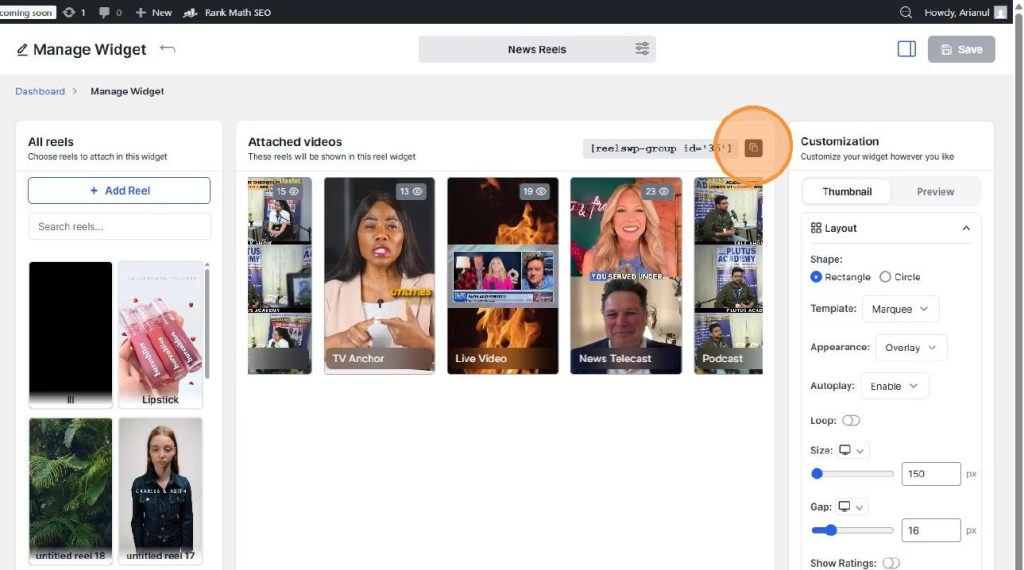
Step 7: Copy the Shortcode
- After saving the widget, a shortcode will be generated for your newly created video reel widget.
- Copy the shortcode to use it in your blog posts.
Step 8: Add the Shortcode to Your Blog Post
- Go to the Posts section in your WordPress dashboard and open the blog post where you want to display the video reels.
- Paste the copied shortcode into the content area of the post. or,
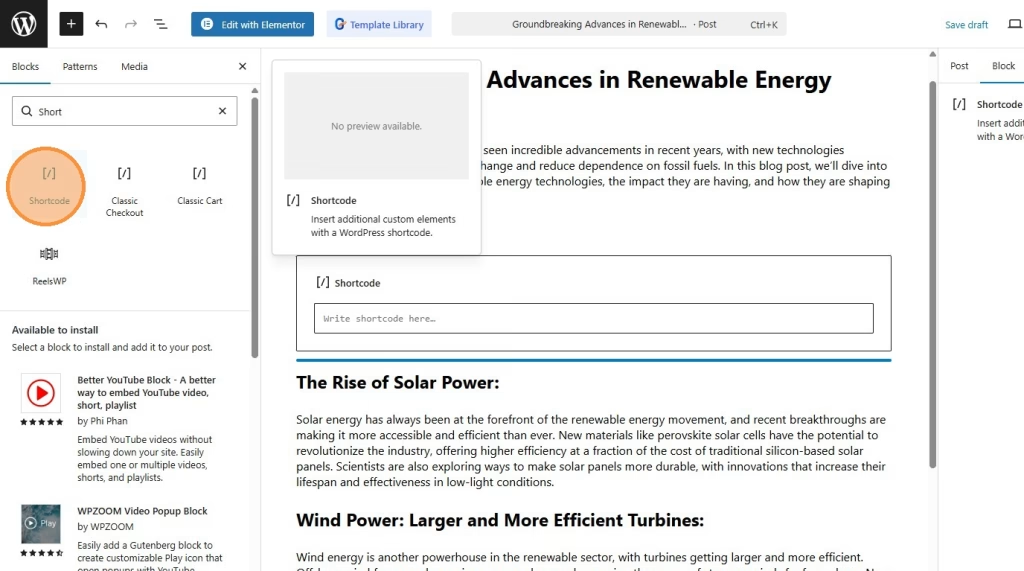
- In the search bar, type “ReelsWP.”
- Drag and drop the ReelsWP widget into your design.
- Click the dropdown menu and select your reel group
- Click Publish to save your changes.
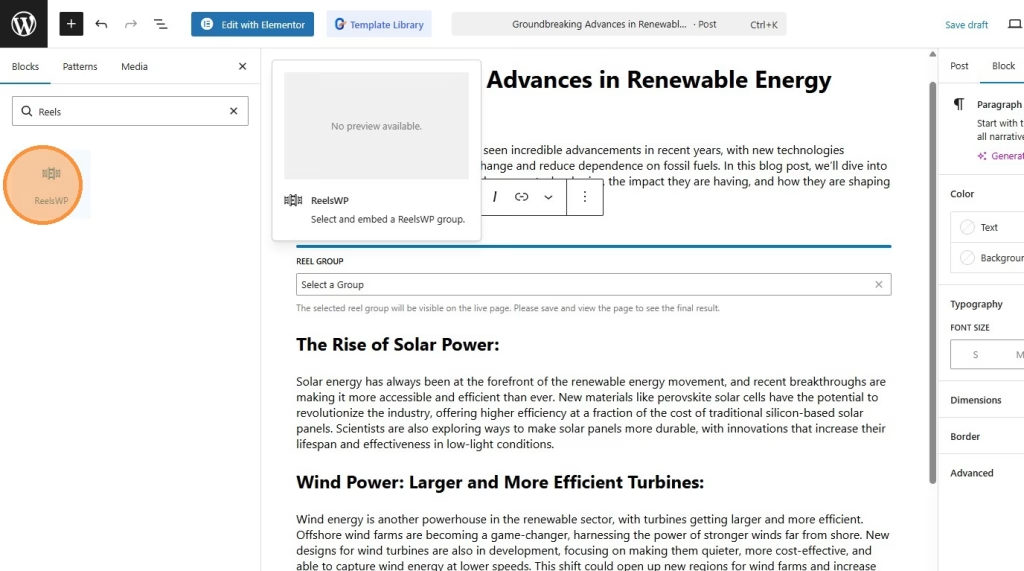
You can also use reelsWP block for block editor (for block themes) or using Elementor (ReelsWP elementor widget).
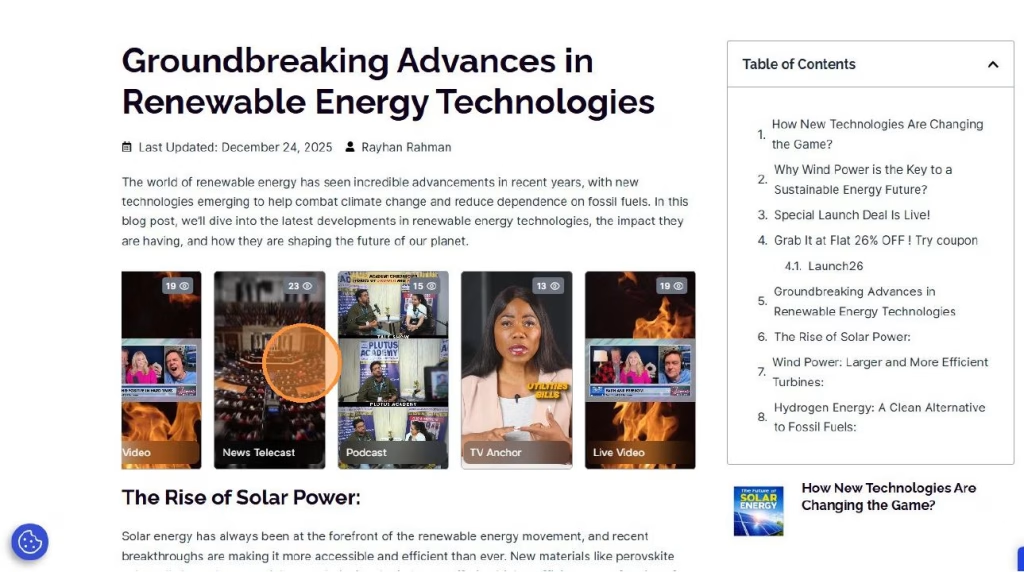
Step 9: Preview the Video Reels
- Visit the published blog post to see the video reels in action.
- Make sure everything is displayed correctly, and the videos autoplay and loop as desired.
FAQs
1) Can I add a link to the video reels?
Yes, you can add custom links to each video in the reel. Simply add a Link in the video details when uploading the reel.
2) Why aren’t the videos showing up in the post?
Check if you’ve correctly copied and pasted the shortcode into the post. Also, ensure that the widget has been saved properly and the videos are uploaded.
3) How do I change the size of the video thumbnails?
You can adjust the Size setting in the widget’s Customization section to make the thumbnails smaller or larger as needed.
4) Can I add product tags to the video reels?
Yes, ReelsWP allows you to tag products in the videos. This is especially useful for WooCommerce stores.
5) How many video reels should I add to a post?
For a clean and user-friendly layout, it’s recommended to add 5 to 10 video reels in a blog post. Too many can overwhelm visitors.
6) Can I add more than one video reel to the same post?
Yes, you can add multiple video reels to any blog post by using the shortcode for each reel. Simply paste them at the desired locations within your post.
7) Why is the video not autoplaying?
Make sure the Autoplay option is enabled in the widget settings. Also, check if your browser settings are blocking autoplay.
8) How can I make the video reels responsive for mobile devices?
The ReelsWP widget is responsive by default, but you can adjust the Size and Gap settings to ensure the videos look great on both desktop and mobile.
9) How do I remove a video reel from a post?
To remove a video reel, simply delete the associated shortcode from the blog post or remove the video from the widget settings in ReelsWP.
By following these steps, you can easily create and display engaging video reels in your WordPress blog posts using ReelsWP, enhancing user interaction and promoting products or content in an attractive, dynamic way.