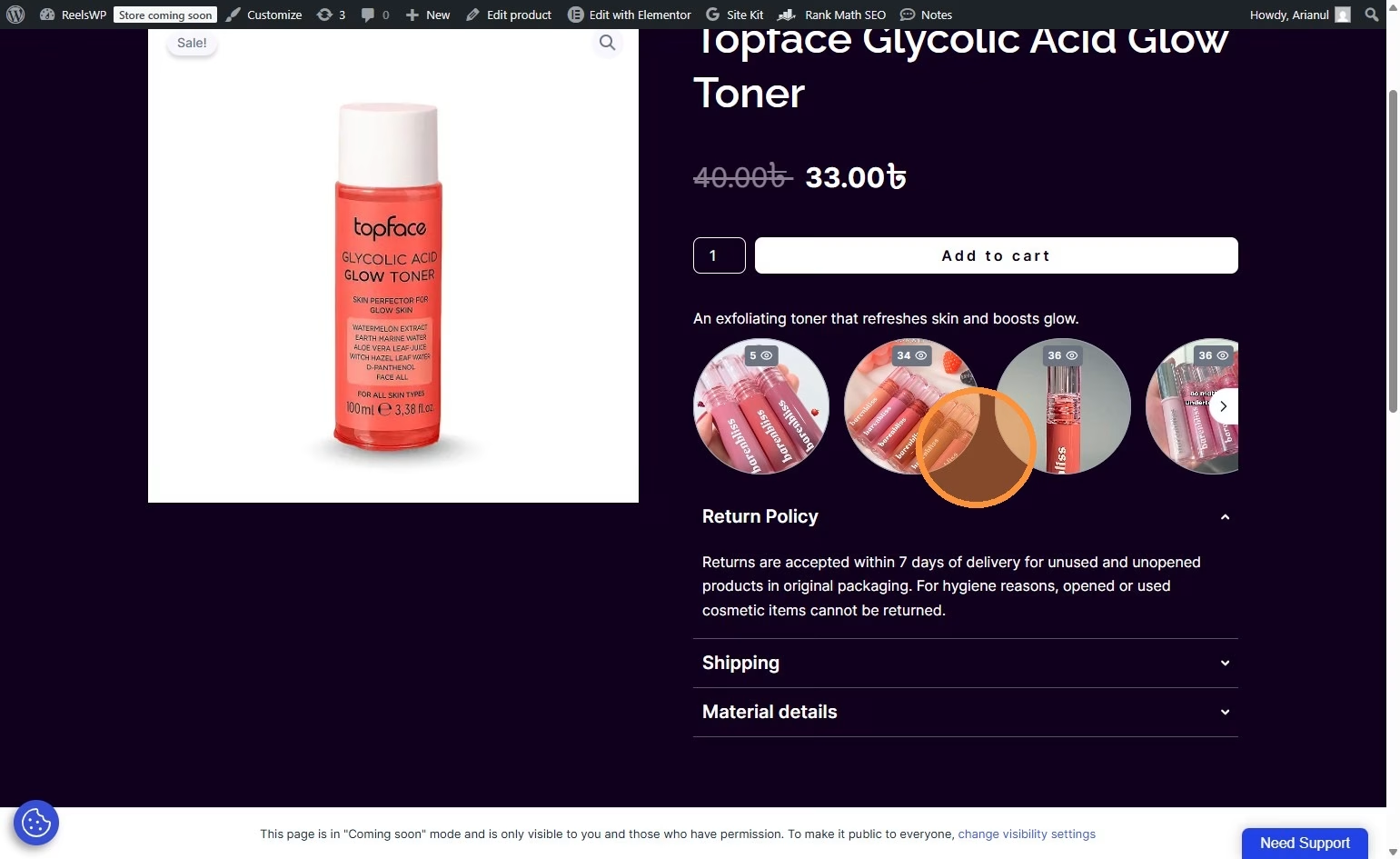
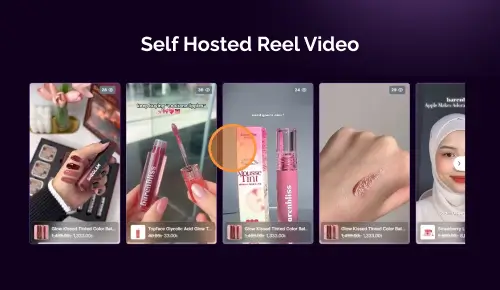
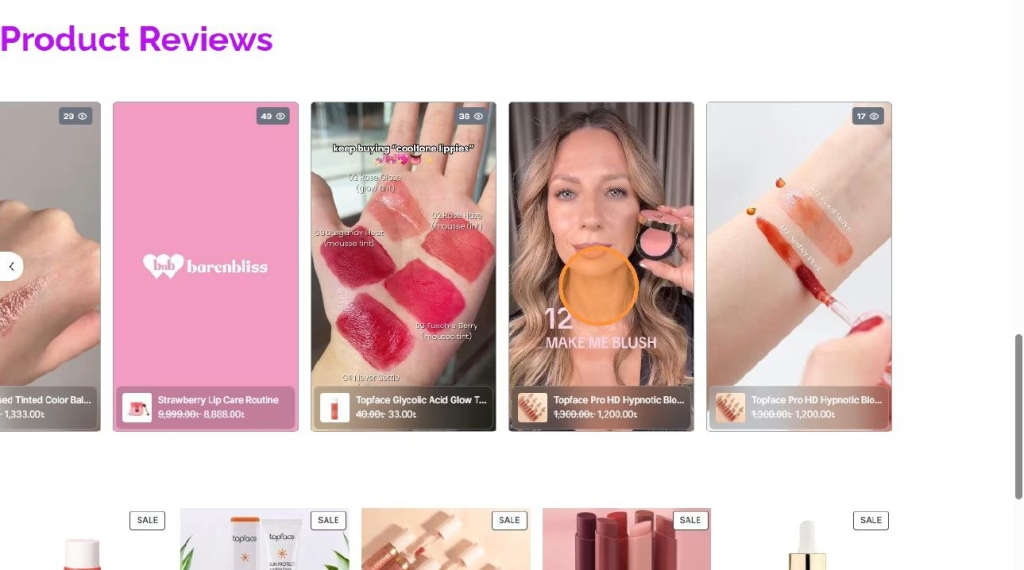
A reels marquee is a smooth, auto-scrolling row of short videos you can place on any page to grab attention and drive clicks to products. This guide shows the exact steps to create the reels, tag products, build a marquee widget, and publish it on your site. How to Add a Shoppable Reels Ma…
Before you start
- You need the ReelsWP and ReelsWP Pro plugin installed and activated on your website.
- You can find detailed installation instructions in our dedicated installation blog post.
- Install the plugin and click Activate once the installation is complete.
Step 1: Open ReelsWP in your WordPress dashboard
- Log in to WordPress admin.
- From the left menu, click ReelsWP.
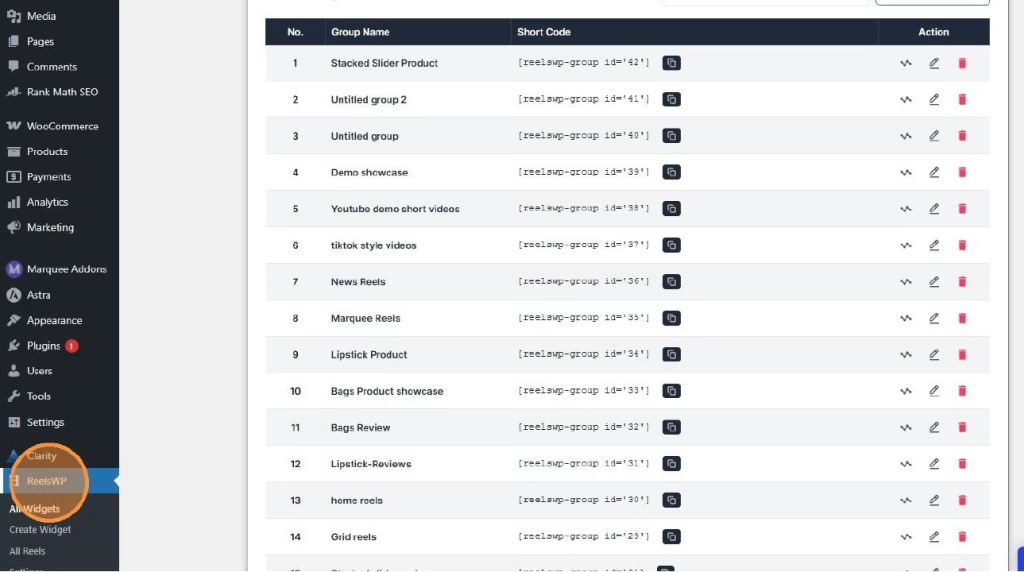
Step 2: Create a new widget (your marquee group)
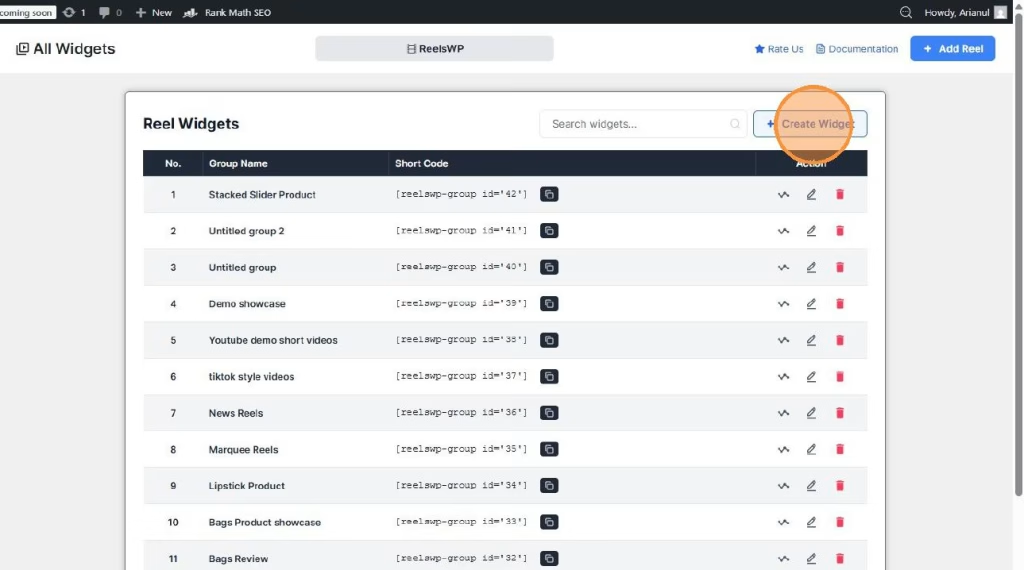
- Inside ReelsWP, click Create Widget.
- You will be taken to the widget management screen.
Step 3: Add a new reel video
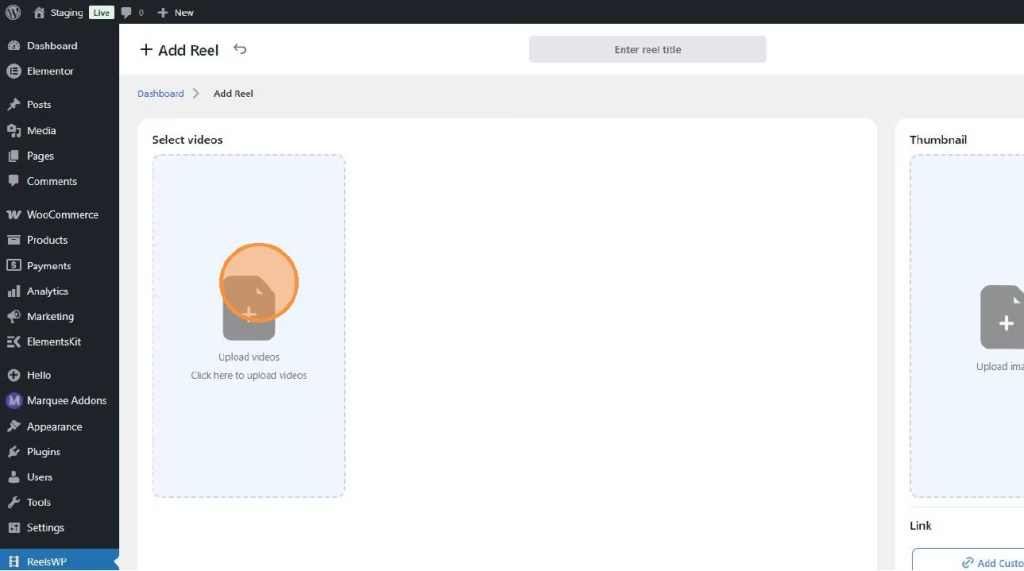
- Click Add Reel.
- In the reel editor, click the Enter reel title field and give your reel a clear name (example: “New Arrivals Reel”).
- Upload/select your reel video in the Select videos area.
- (Optional but recommended) Upload a Thumbnail image so it looks clean before play.
Step 4: Make it “shoppable” by tagging products
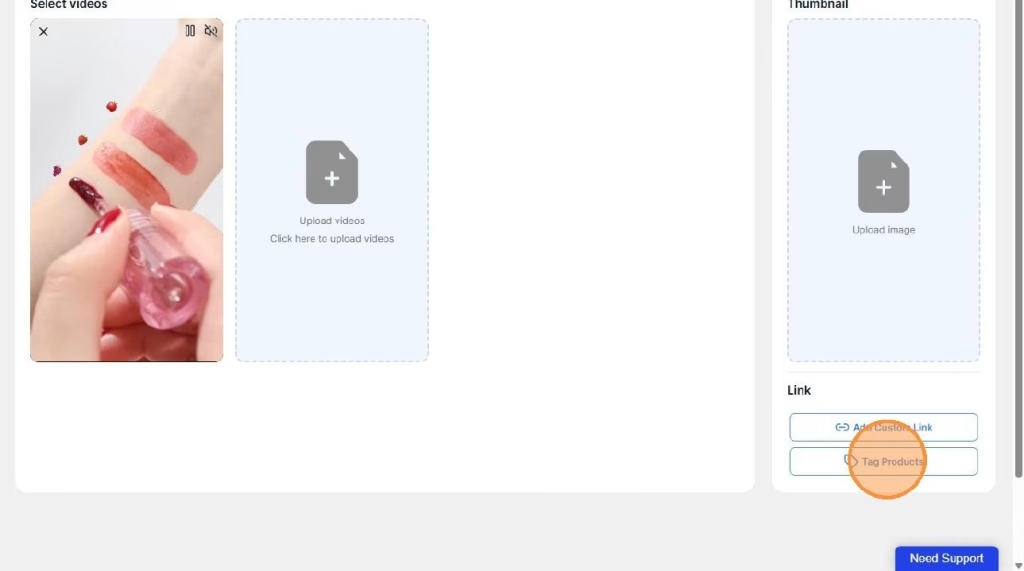
- Click Tag Products.
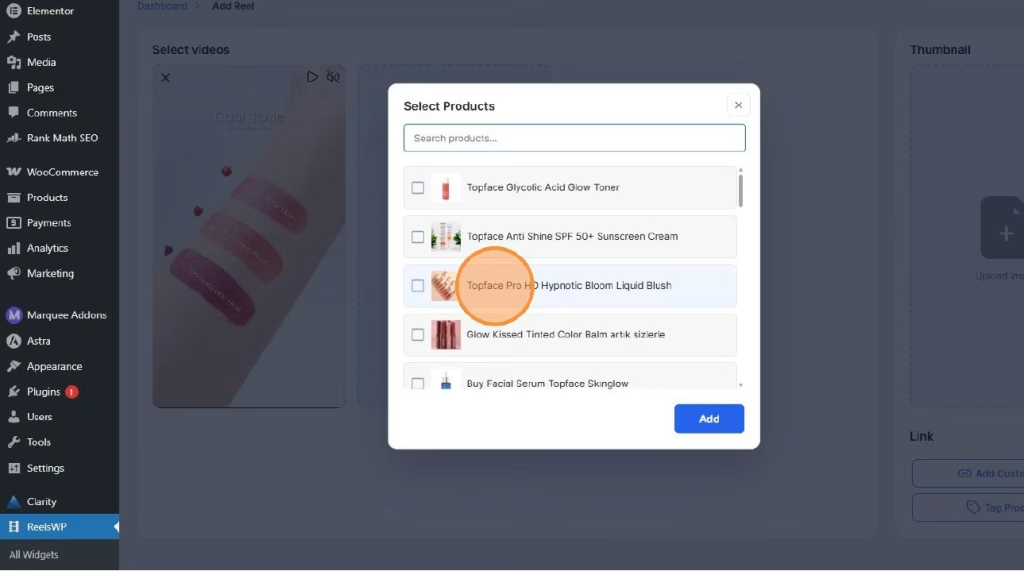
- Search and select the product(s) you want to attach to this reel.
- Click Add to confirm your selection.
Step 5: Save the reel
- Click Save to store the reel with its product tags.
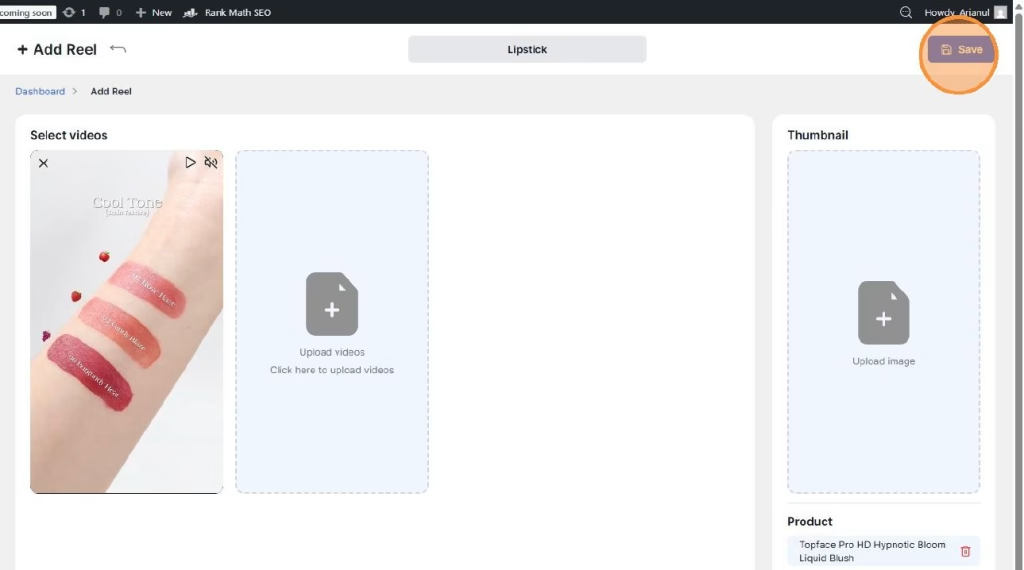
Step 6: Attach reels to your widget (marquee group)
- Go back to your widget management screen.
- Find the reel you created in the “All reels” list.
- Click Click to add this reel to attach it to the widget.
- Repeat for more reels until your marquee has enough items to scroll nicely.
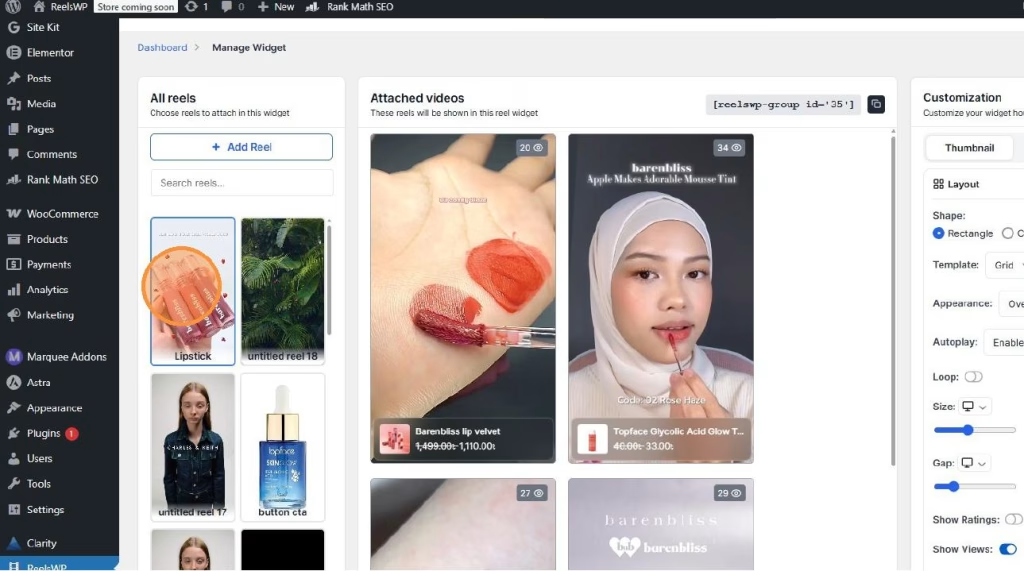
Step 7: Set the layout to Marquee and adjust settings
- In the widget settings panel, choose Marquee as the layout/template.
- Adjust the look based on what you want, for example:
- Shape (rectangle/circle)
- Autoplay
- Loop
- Size
- Gap/spacing
- Show ratings, views, or other display toggles (if available in your setup)
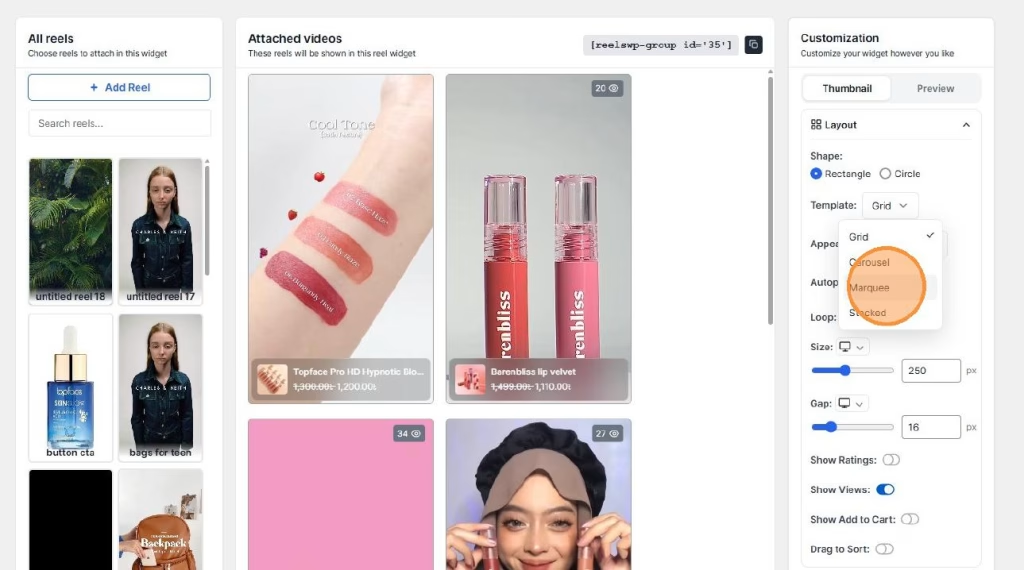
Step 8: Save the widget
- Click Save again to store the widget layout and customization.
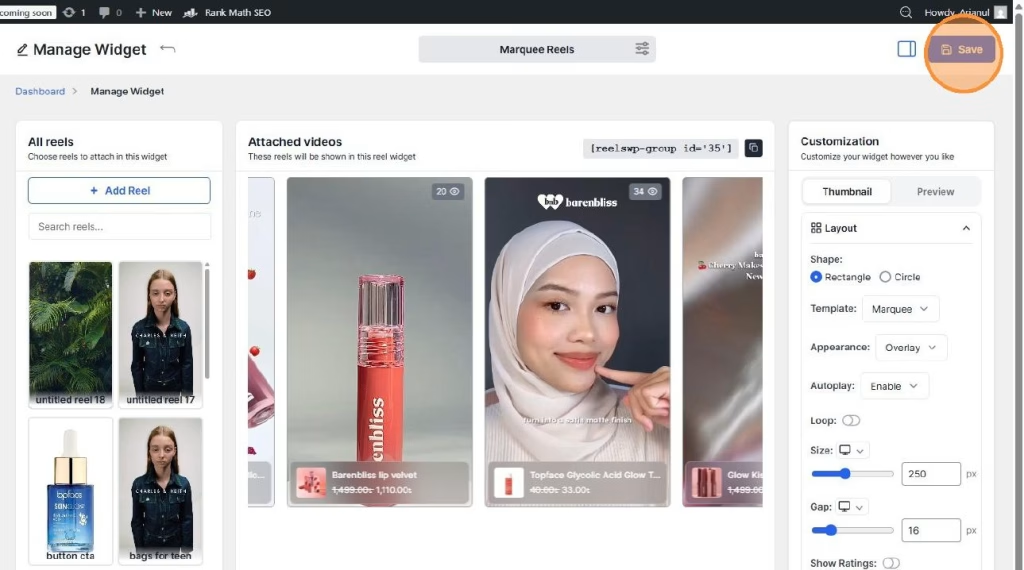
- Copy the short code
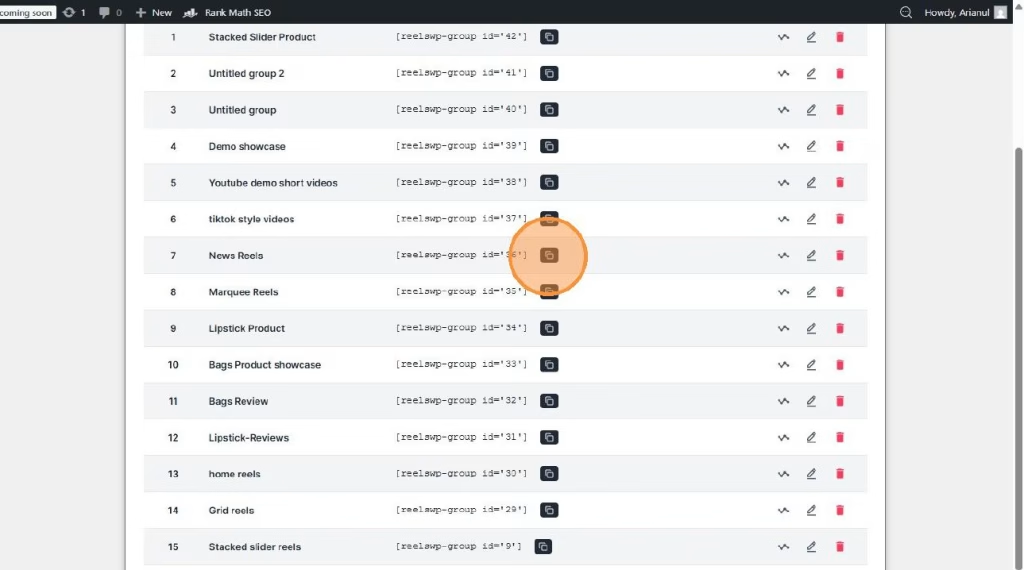
Step 9: Add the ReelsWP widget to your page
- Open the page where you want to show the marquee.
- Paste te short code of the ReelsWP widget into your design.
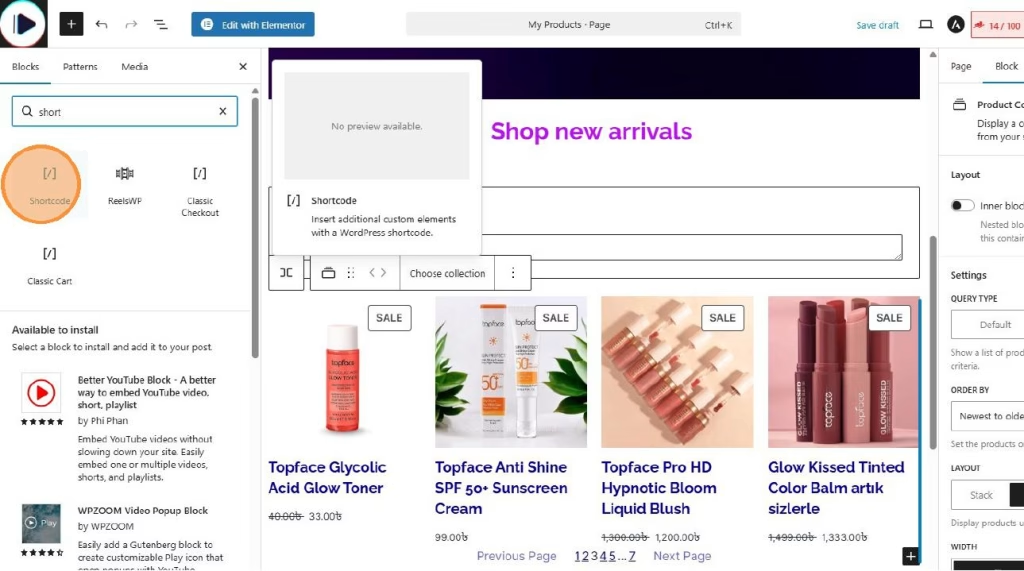
- or drag and drop the ReelsWP widget into your design
- From the widget dropdown, select your created group (example: “Marquee Reels”).
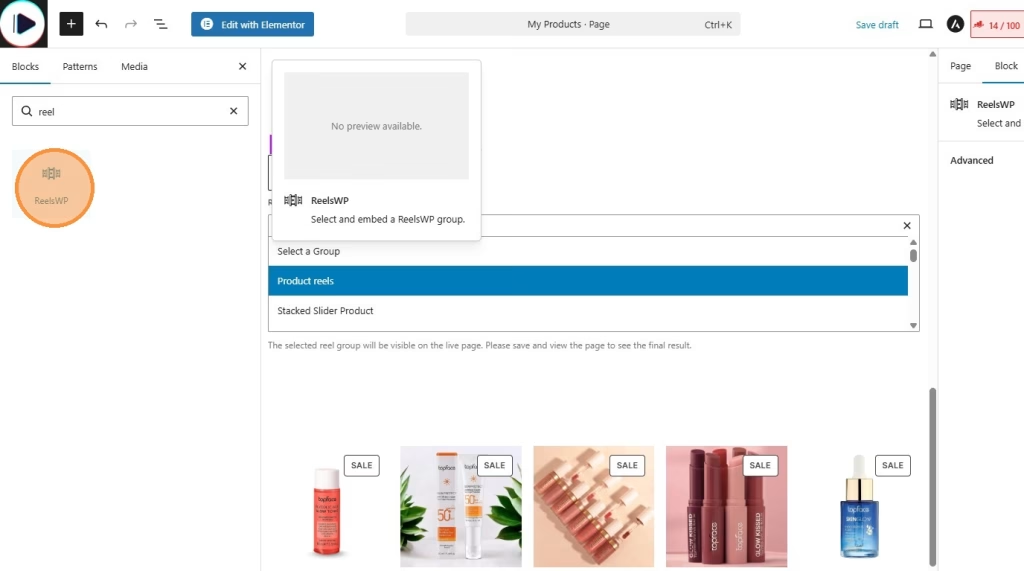
You can also use reelsWP block for block editor (for block themes) or using Elementor (ReelsWP elementor widget).
Step 10: Publish and preview
- Click Publish (or Update) on the page.
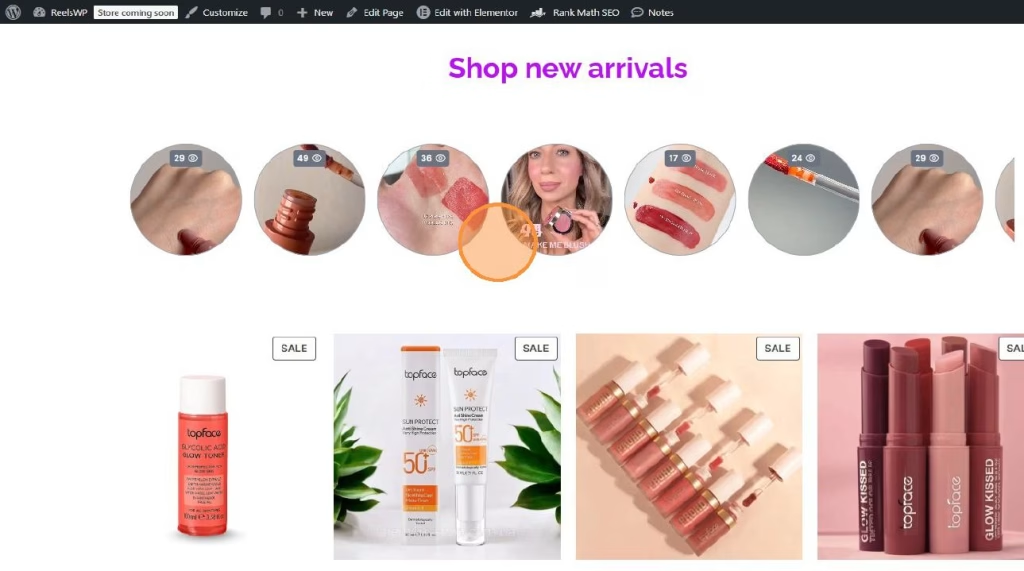
- Preview the page to confirm:
- The marquee scrolls smoothly
- Reels play properly
- Product tags open the right product when clicked
FAQs
1) Can I use a reels marquee without WooCommerce?
Yes. You can still show reels as a marquee. Product tagging is mainly for stores. If you are not using WooCommerce, you can use custom links (if your setup shows an “Add Custom Link” option) to send people to any page.
2) How many reels should I add to make the marquee look good?
A good starting point is 6 to 10 reels. Too few reels can make the scrolling feel repetitive.
3) Why is my marquee not scrolling?
Usually it happens when:
- The layout is not set to Marquee
- Autoplay/loop settings are off (depending on your configuration)
- Not enough reels are attached to the group
4) Why is the reel not showing the product tag?
Check these:
- You clicked Tag Products and then clicked Add
- You clicked Save after tagging
- The product exists and is published
5) Can I change the size and spacing of reels in the marquee?
Yes. In the widget customization panel you can adjust Size and Gap/spacing to match your page layout.
6) Do I need a thumbnail?
Not required, but recommended. A thumbnail makes the marquee look clean before the video plays and helps keep the design consistent.
7) Can I add the marquee to multiple pages?
Yes. Create the widget once, then select that same widget/group anywhere you add the ReelsWP widget.
8) What’s the best place to use a reels marquee?
Common spots:
- Homepage hero section (below the main banner)
- Product or category landing pages
- Blog pages (to show featured items or social proof)
- Sales pages (to keep visitors engaged)
9) My reels look cropped or off. How do I fix it?
Try changing:
- Shape (rectangle vs circle)
- Size
- Thumbnail dimensions (use consistent image ratios)
10) Should I enable autoplay?
Autoplay usually increases engagement for a marquee. If you enable it, keep videos short and make sure the reel content is clear within the first second.
If you want, paste a screenshot of your widget settings panel and I will suggest the best marquee settings (size, gap, autoplay) for your exact page layout.