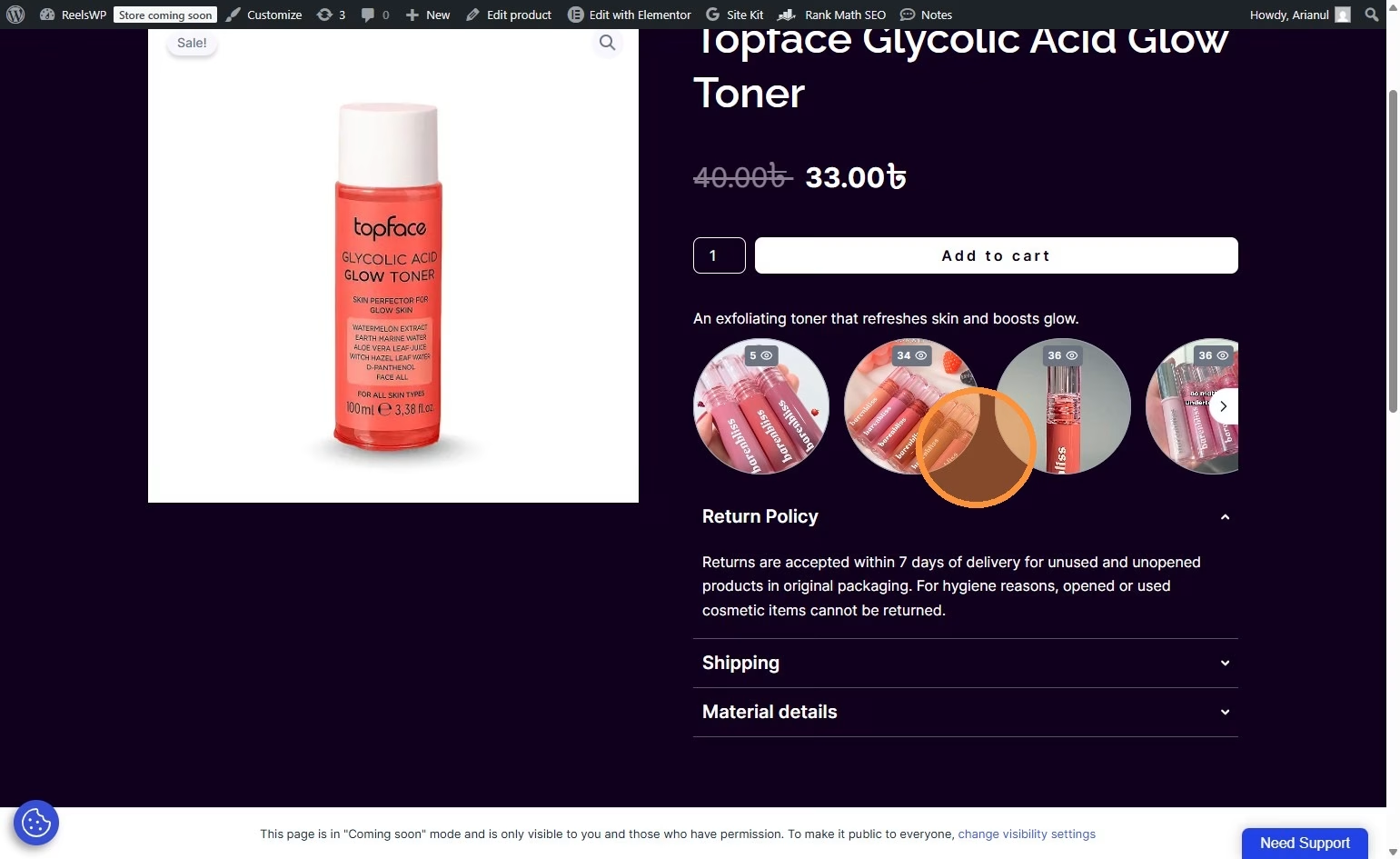
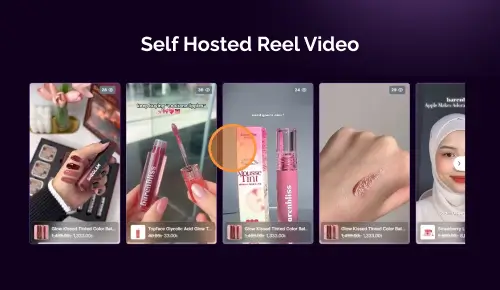
Display Product Video Reels in WooCommerce
Adding video reels to your WooCommerce product pages is a simple way to make product listings more interactive and visually engaging. With ReelsWP, you can create a reel group, customize its layout, copy the shortcode, and place it directly inside your product content.
1. Install and Activate ReelsWP
- You need the ReelsWP plugin installed and activated on your website.
- You can find detailed installation instructions in our dedicated installation blog post.
- Install the plugin and click Activate once the installation is complete.
Step 2: Open ReelsWP in your WordPress dashboard
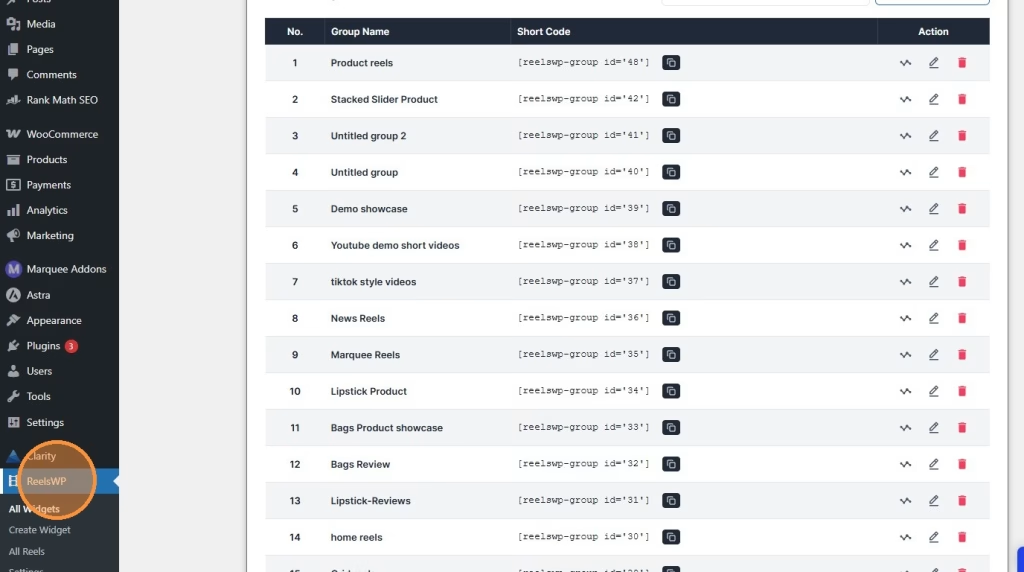
Log in to your WordPress admin area and click ReelsWP from the left sidebar. This will open the ReelsWP dashboard where your existing reel groups are listed.
Step 3: Create a new reel widget
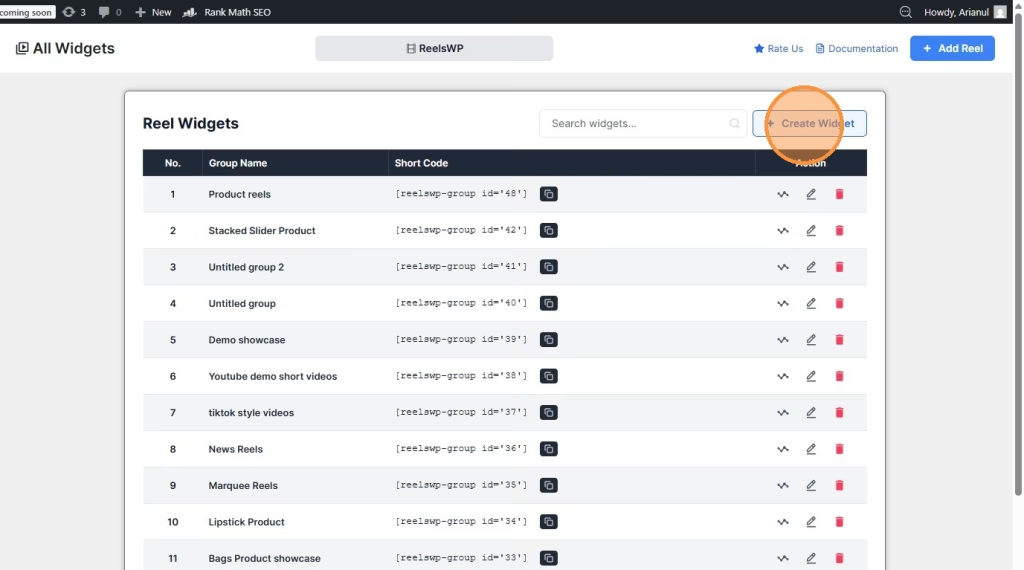
Click Create Widget to make a new reel group for your product page videos. Give the group a name that helps you identify it later, such as the product name or category.
Step 4: Add reels to the widget
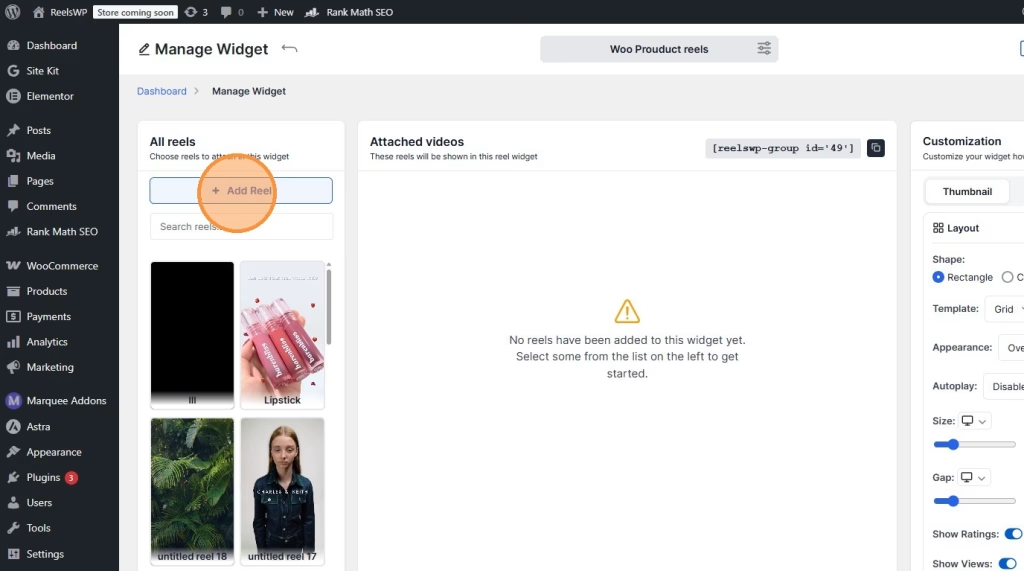
Inside the widget screen, click Add Reel. This opens the reel library where you can select the videos you want to show on the product page.
or, Choose a reel from the list and Click to add this reel. Repeat this for each video you want included in the product page display.
Step 5: Edit the layout settings
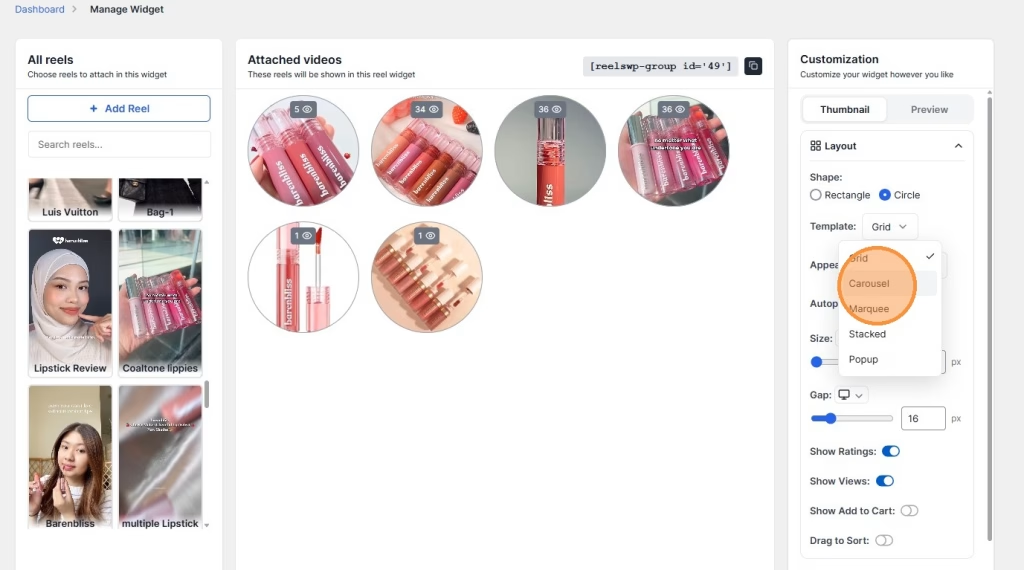
After adding your reels, adjust the layout settings in the customization panel. You can change options like:
- shape
- template
- appearance
- autoplay
- size
- gap
- ratings or views display
This helps you match the reel design with your WooCommerce product page layout.
Step 6: Save and copy the shortcode
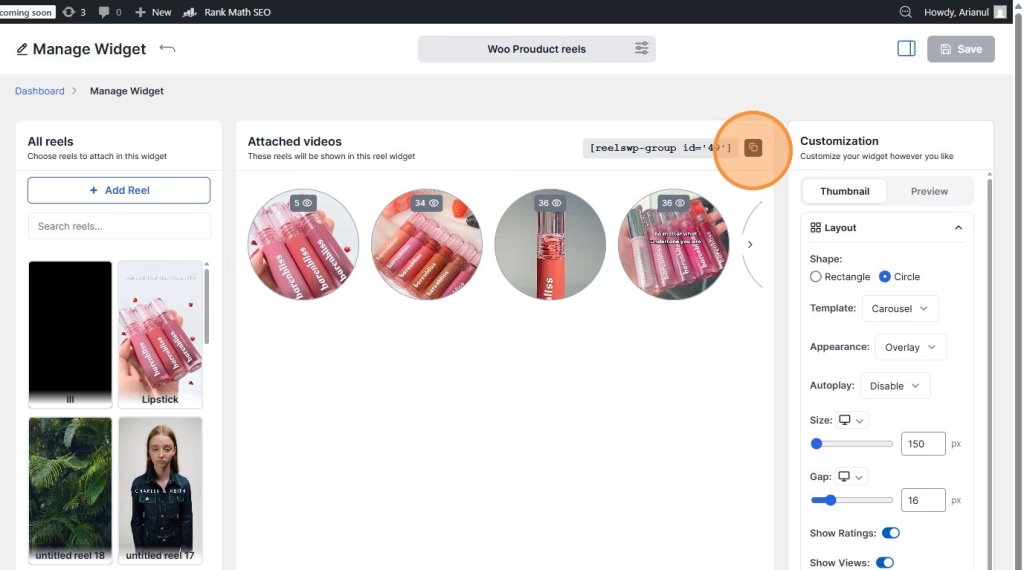
Once your layout is ready, save the widget and copy the shortcode. You can copy it directly from the widget screen or from the main ReelsWP dashboard.
Step 7: Go to WooCommerce products
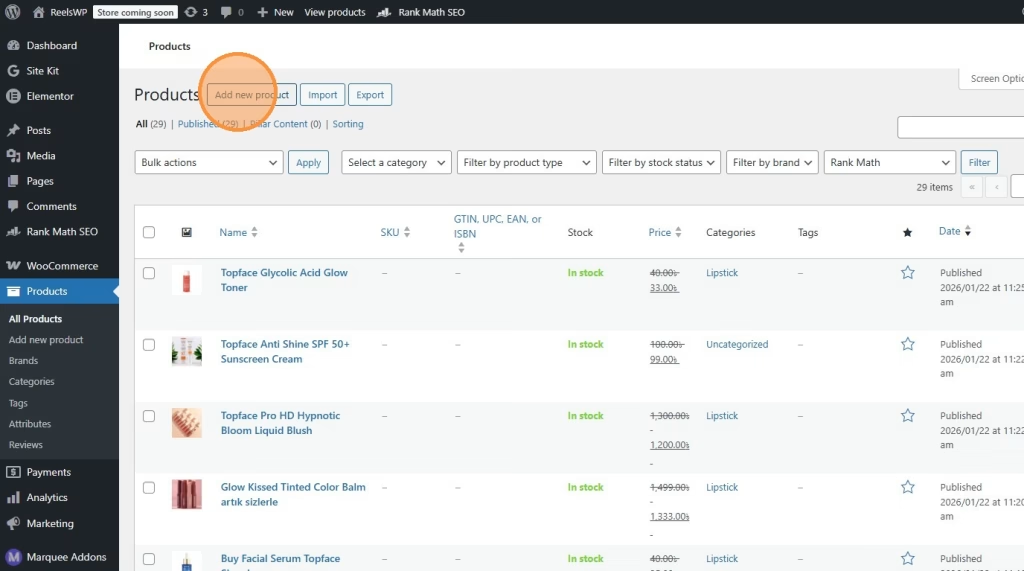
In your WordPress dashboard, click Products and then select Add New Product if you are creating a new product. You can also open an existing product if you want to add reels to it.
Step 8: Paste the shortcode into the product description
Paste the copied ReelsWP shortcode into the main product description field. This will display the video reels inside the full product content area.
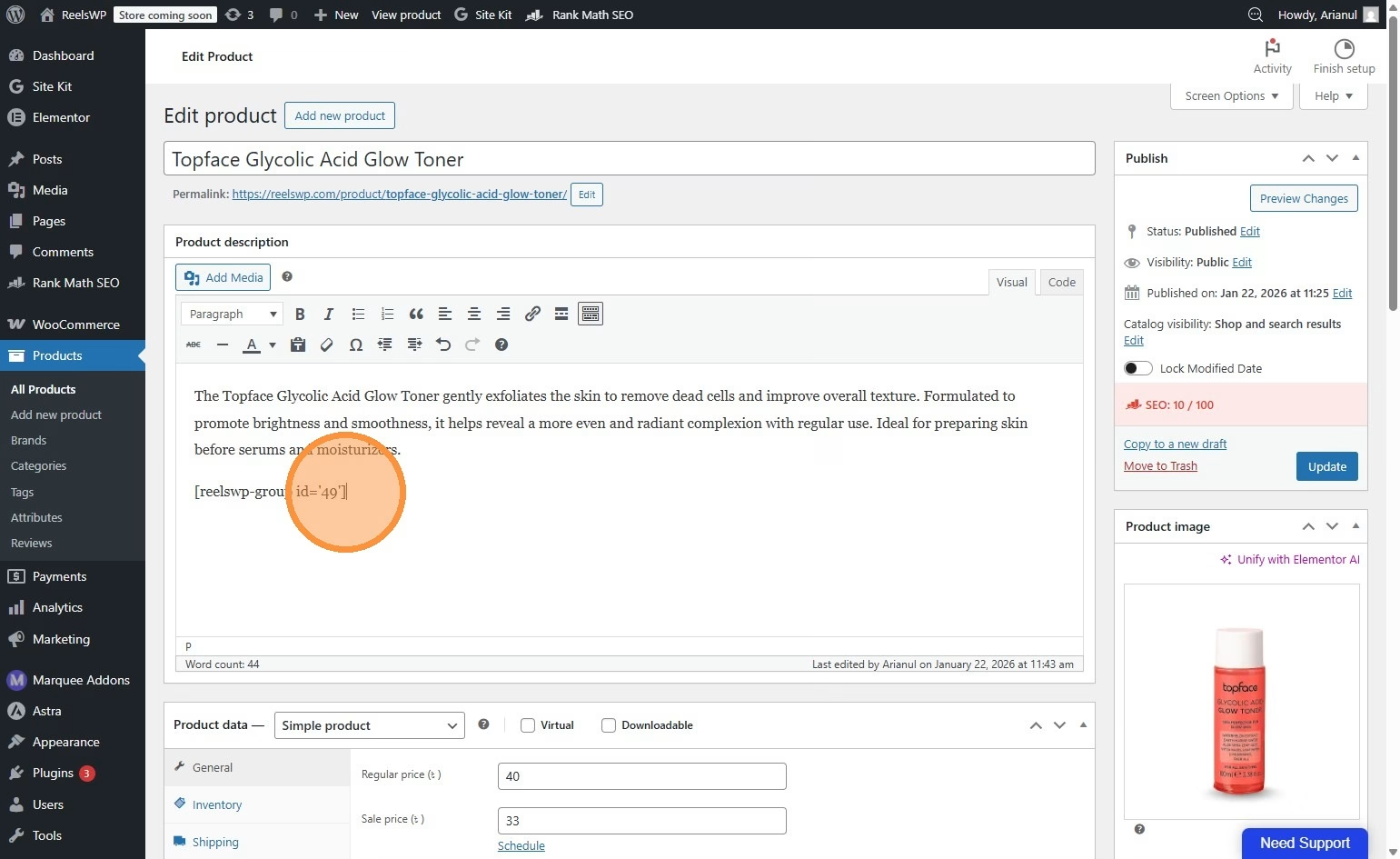
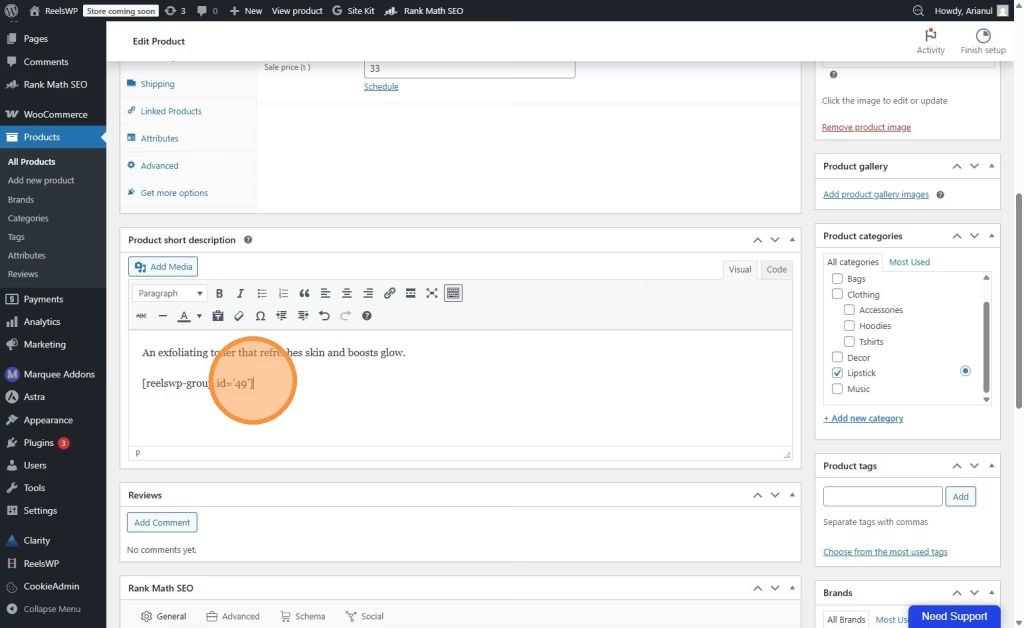
Step 9: Or paste it into the short description
You can also paste the shortcode into the Product short description field if you want the video reels to appear closer to the top of the product page, depending on your theme layout.
Step 10: Preview the product page
Preview the product page to check how the reels look on the front end. Make sure the videos appear correctly and fit well with your product content.
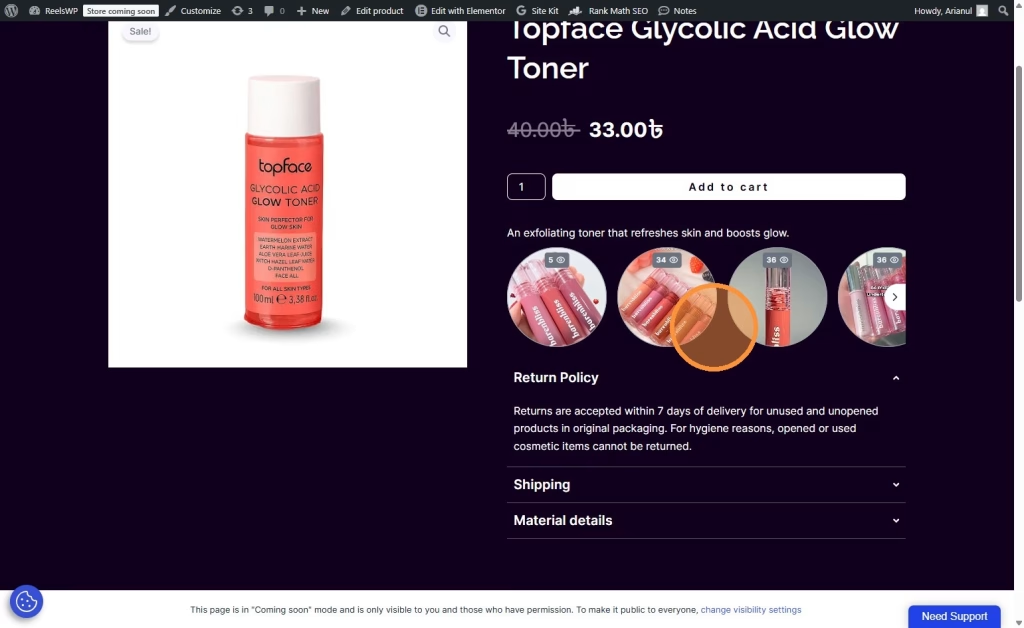
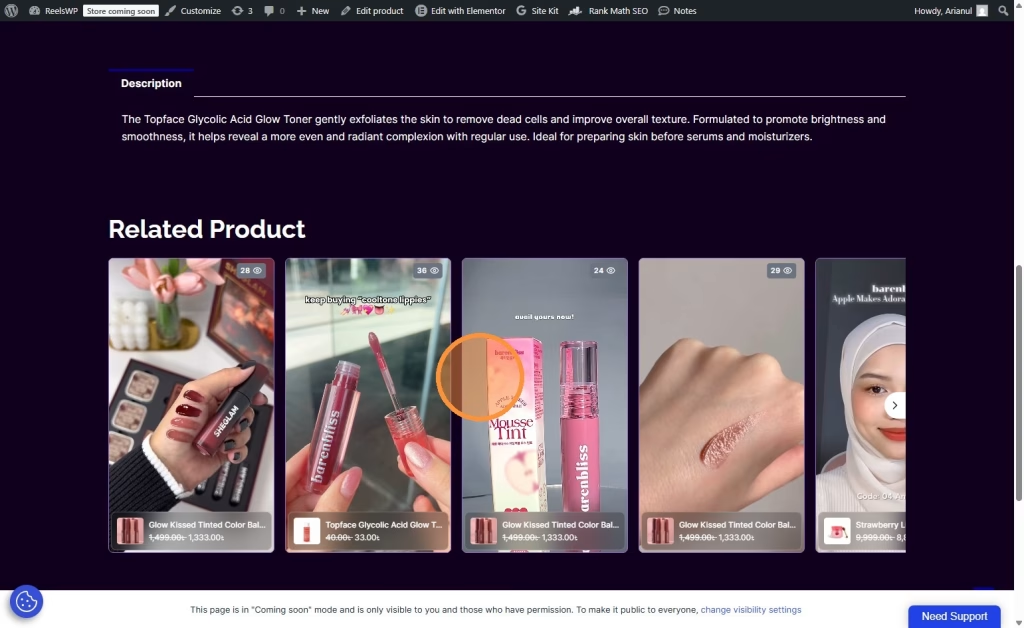
Step 11: Test the reel interaction
Click one of the displayed reels on the live product page to confirm it opens and works properly. This final check helps ensure visitors will have a smooth viewing experience.
FAQs
1) Where should I paste the ReelsWP shortcode on a WooCommerce product page?
You can paste it in either the product description or the product short description. The best place depends on where you want the reels to appear on the page.
2) Can I use the same reel group on multiple product pages?
Yes. You can copy the same shortcode and use it on multiple WooCommerce products if you want the same reel set to appear in different places.
3) Can I create different reel groups for different products?
Yes. This is usually the better option if each product has its own videos. You can create separate reel groups and use a different shortcode for each product.
4) Will the reels show inside the product description automatically?
Yes. Once you paste the shortcode and update or publish the product, the reels will render on the front end where the shortcode was placed.
5) Can I add reels to an existing product?
Yes. Open the existing WooCommerce product, paste the shortcode into the description or short description, and update the product.
6) What if the reels do not appear on the product page?
Check that:
- the shortcode was copied correctly
- the reel group has videos attached
- the widget was saved
- the product page was updated after pasting the shortcode
7) Can I customize how the reels look on the product page?
Yes. ReelsWP lets you adjust layout settings like shape, template, size, gap, appearance, and autoplay before copying the shortcode.
8) Should I use the description or short description area?
Use the description if you want the reels to appear with the main product content. Use the short description if you want them to appear near the product summary area.
9) Do I need Elementor or Gutenberg for this method?
No. Since this method uses a shortcode, you can place it directly in the WooCommerce product editor without needing a page builder.
10) Can customers click on the reels from the product page?
Yes. After the reels are displayed, visitors can click them on the front end and interact with the video content.
If you want, I can also rewrite this in a more blog-friendly style with an intro, conclusion, and SEO-ready FAQ wording.